

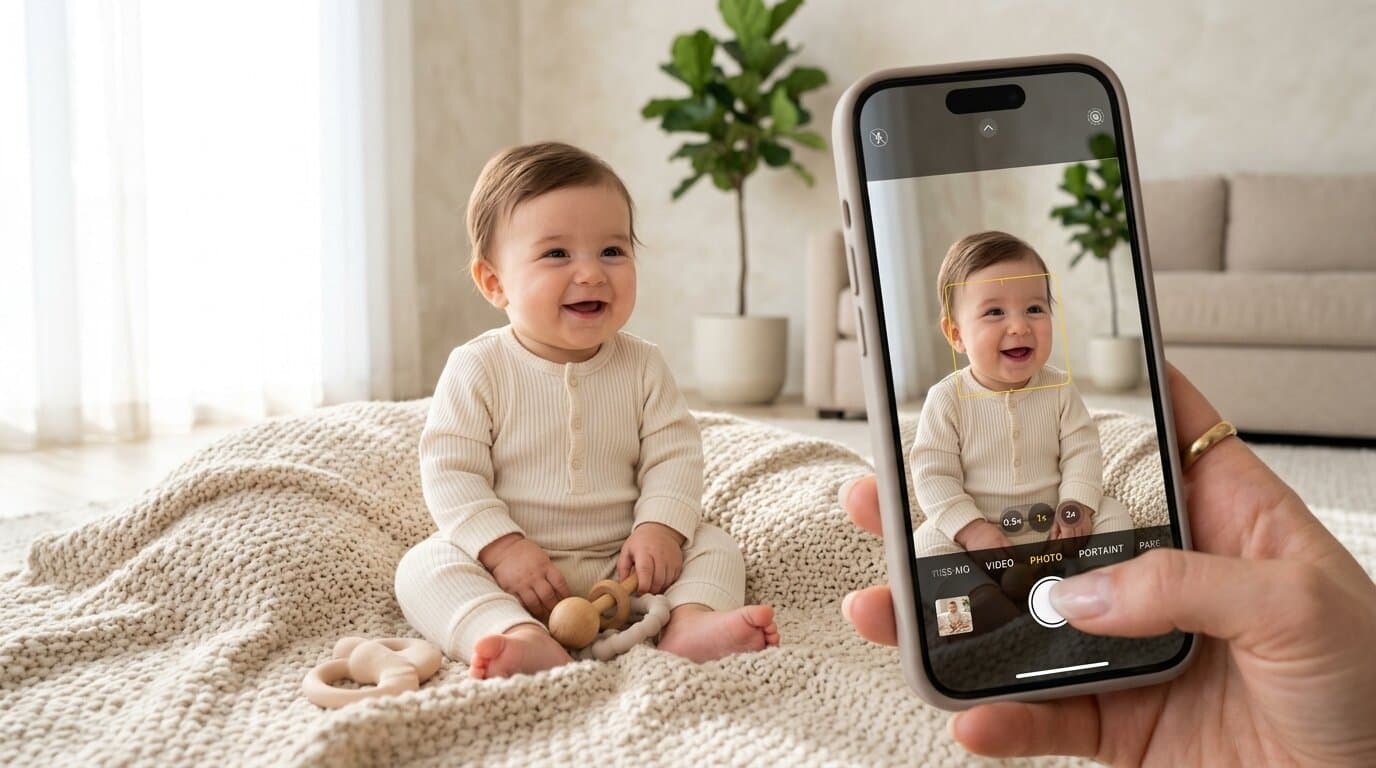
To take professional baby photos on an iPhone, lock focus and exposure by tapping and holding your baby's face (AE/AF Lock), drag the sun icon slightly up (+0.5 EV), set Portrait Mode Depth to ƒ/3.2, and hold the shutter button to the left for Burst Mode (10 fps). For lighting, position baby at a 45° angle to a large daylight window with overhead yellow room lights switched off.
Modern iPhones pack incredible cameras, but when you try to snap a quick photo of an active baby, the result is often a blurry, dimly lit snapshot with yellow indoor tints.
Babies are the ultimate photography challenge. They are in constant motion, and the lighting in a standard living room is rarely ideal. Whether you are capturing their first smile or documenting monthly milestone photo ideas, mastering a few iPhone camera adjustments makes all the difference.
Here is the exact step-by-step technical guide to capturing and editing sharp, beautiful baby photos at home on your iPhone.
Part 1: Pre-Capture Camera Settings
Before pressing the shutter, your camera needs to be configured to freeze fast infant movements and prioritize soft lighting across their face.
1. Lock Focus and Overexpose (AE/AF Lock)
The iPhone's autofocus constantly hunts when a baby kicks or waves hands, causing sudden blur.
- The Technique: Frame your shot. Tap and hold on your baby's eyes or nose on screen for two seconds until the yellow AE/AF LOCK banner appears at the top.
- The Exposure Trick: Once locked, drag the small sun icon next to the box UP slightly (+0.3 to +0.7 EV). iPhones naturally underexpose indoor shots; lifting this slider manually gives your baby's skin a bright, soft glow before you even snap the picture.
2. Configure Photographic Styles (iPhone 13 & Newer)
Instead of applying heavy filters later, set a clean color grade directly in your camera lens:
- Setup: Swipe up on the camera viewfinder and tap the three layered squares icon. Select the "Vibrant" or "Rich Warm" style.
- Custom Sliders:
- Tone: Set to +30 (Lifts shadow details on tiny faces without blowing out highlights).
- Warmth: Set to +15 (Injects a cozy golden-hour glow and neutralizes cold window light).
3. Master Burst Mode for High-Speed Crawlers
Do not rely on single taps when your baby is giggling or rolling. Burst Mode forces your iPhone to shoot at 10 frames per second with a high shutter speed.
- The Action: Tap and immediately drag the white shutter button to the left (toward the gallery thumbnail). Hold it down as your baby laughs. Scrub through the burst in Photos and select the exact frame where both eyes sparkle.
For detailed lighting angles and positioning rules, read our dedicated phone lighting settings guide.
Part 2: The "Light & Airy" Native iPhone Editing Formula
You do not need to buy expensive Lightroom presets. The iPhone's built-in Photos app has a professional-grade color engine. To achieve that luminous studio look, open your photo, tap Edit, and apply these exact values:
The Exact Editing Slider Formula
| Native Slider | Recommended Setting | Why This Step Matters |
|---|---|---|
| Exposure | +10 to +15 | Brings clean overall ambient light into the scene. |
| Brilliance | +20 | Lifts mid-tones and makes eyes pop without clipping whites. |
| Highlights | -15 to -20 | Recovers bright window highlights so skin isn't washed out. |
| Shadows | +25 | Erases dark under-chin shadows and softens contrast. |
| Contrast | -15 | Gives baby skin an ultra-smooth, porcelain studio look. |
| Black Point | -5 | Gently softens deep blacks for a timeless film aesthetic. |
| Warmth | +15 | Neutralizes sterile indoor LED bulbs with a cozy golden tone. |
| Tint | +5 | Adds a subtle touch of magenta for rosy baby cheeks. |
Part 3: Optimize Portrait Mode Depth (f-stop)
If you use Portrait Mode, Apple's AI depth map sometimes accidentally blurs baby ears, curly hairs, or fingers. You can easily fix this after taking the photo.
- The Fix: Open any Portrait photo, tap Edit, and tap the ƒ (f-stop) icon at the top left.
- The Sweet Spot: Slide the aperture to ƒ/3.2 or ƒ/4.5. This keeps the background beautifully blurred (creamy bokeh) while ensuring baby's entire head, ears, and tiny fingers remain tack-sharp.
The Reality: Camera Settings Can't Fix Cluttered Rooms
Even when you nail the exposure, apply the light & airy formula, and capture a radiant smile, home photos are still limited by the physical environment.
A pile of laundry on the couch, plastic toys on the rug, or a dark living room corner can instantly distract from your baby's milestone. Creating heirloom studio art traditionally required spending $400 to $800 at a studio — as explored in our average cost of a baby photographer breakdown — or spending hours setting up DIY backdrops for a 1st birthday photoshoot at home.
The 2-Minute Solution: Studio Quality from Everyday Snaps
What if you could take any everyday iPhone snapshot from your couch and transform it into an editorial studio portrait?
With Baby AI Photoshoot, you don't need to clean your living room, buy backdrop stands, or wrestle with fussy lighting.
- Upload your everyday iPhone photo to our secure studio engine.
- Choose from 40+ artisan themes — explore our curated studio templates including cake smash, vintage aviator, royal princess, and monthly milestones.
- Download your studio portraits, each ready in about 2 minutes, with plans starting from $14.90.
Turn your everyday camera roll into timeless heirloom portraits today at Baby AI Photoshoot.